Scenario
Time window, environment, and globe display
Select Scenario at the top of the Mission Tree. Properties then show four tabs: General, Environment, 3D Viewer, and 2D Viewer.
On Web Trial the default window is 12 hours on the same calendar day, inside a 24 h maximum, with a 120 s step. Leave those values unless your plan allows a longer window or a finer step.
Open Web App · next: 3D / 2D scene
Apply vs live
General and Environment need Apply Changes (they drive trajectories and analyses). 3D Viewer / 2D Viewer update the globe immediately and are saved with the mission — no Apply.
On Desktop, General and Environment live in Scenario Settings. The same globe options are Settings on the Mission Viewer window (3D vs 2D window shows the matching subset).
General
| Field | What it does |
|---|---|
| Name | Mission name (also used when you export .astrolab) |
| Start / end | Interval the analyses and the 3D playback cover (UTC in the scene toolbar) |
| Scenario time step | Sampling for dynamics and analyses. Trial and Basic: minimum 120 s. Pro: 60 s. Maximum 24 h. |
| Central body | Earth |
| Description | Optional notes |
Start must be before end. If you pick a window or step your plan does not allow, an upgrade message appears — do not fight the field; shorten the window or keep 120 s on Trial.
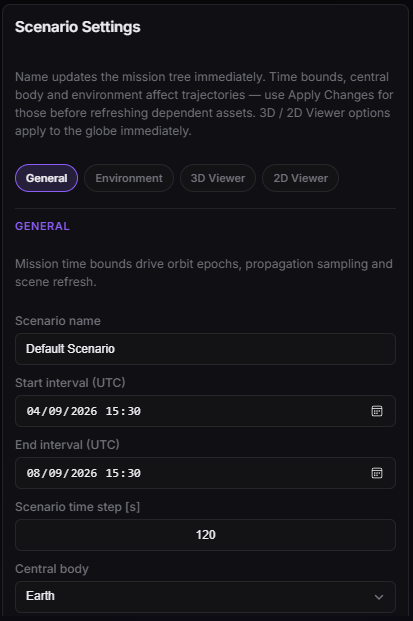
Scenario — General: name, start/end, and time step. Apply Changes at the bottom.
Environment
Use this tab when a study needs lighting, atmosphere, or RF climate. Defaults are enough for the first optical coverage tutorial.
| Area | Typical use |
|---|---|
| Sun / Moon | Compute Sun / Moon ephemeris (analyses and illumination constraints). Independent of Show Sun / Show Moon on the 3D Viewer tab. |
| Optical | Cloud, visibility, and related factors for EO/IR |
| RF | Climate for Link atmospheric loss. Independent of Optical. |
RF propagation does not change the orbit. Link uses it only when Include atmospheric loss is on.
| Control | Effect |
|---|---|
| ITU maps — annual average | Rain rate (P.837, exceeded 0.01% of the year), rain height (P.839), surface temperature (P.1510), water vapour (P.836, 50%), cloud liquid water (P.840, 50%), and topographic height (P.1511) at the lower terminal. |
| ITU maps — monthly | Same maps. The month (from the link timeline, or a fixed calendar month) changes surface temperature only. |
| Custom | You type rain rate, temperature, water vapour, cloud water, rain height, station altitude, and pressure. |
| Rain polarization | Horizontal or vertical. It selects the P.838 rain coefficients. It is not the transmitter/receiver RHCP or LHCP. |
The formulas those maps feed are on Link — atmospheric loss. Optical cloud cover is not this rain or cloud-liquid map. Optical field lists stay with Coverage.
3D Viewer
Globe display for Design in 3D. Same options as Desktop Cesium Viewer Settings. Playback, follow, and 2D/3D toggle are on the scene itself — 3D / 2D scene.
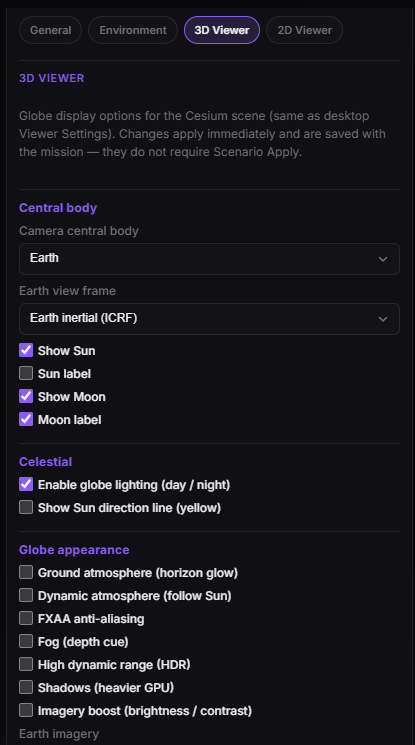
Scenario → 3D Viewer — lighting, overlays, and Earth frame. Applies to the globe immediately.
Central body
| Control | What it does |
|---|---|
| Camera central body | Earth (default) or Moon. Moon recentres zoom/orbit on the Moon; mission assets stay Earth-fixed. |
| Earth view frame | Earth-fixed (ECEF) or Earth inertial (ICRF). Inertial uses an inertial camera. Disabled when the camera is on the Moon. 2D is always the Earth-fixed map. |
| Show Sun / Sun label | Draw the Sun (and optional label) in 3D. Hidden automatically in 2D. |
| Show Moon / Moon label | Draw the Moon (and optional label) in 3D. Hidden automatically in 2D. |
Celestial
| Control | What it does |
|---|---|
| Enable globe lighting (day / night) | Terminator and night side on the Earth. Shared with 2D. |
| Show Sun direction line (yellow) | Vector from Earth centre toward the Sun. 3D only. |
Globe appearance
| Control | What it does |
|---|---|
| Ground atmosphere (horizon glow) | Atmosphere at the limb |
| Dynamic atmosphere (follow Sun) | Atmosphere follows solar direction |
| FXAA anti-aliasing | Smoother edges |
| Fog (depth cue) | Distance fade |
| High dynamic range (HDR) | Brighter highlights |
| Shadows (heavier GPU) | Cast shadows — leave off unless you need them |
| Imagery boost (brightness / contrast) | Stronger map contrast. Shared with 2D. |
| Earth imagery | Natural Earth (light tiles) or High-Res (Blue Marble when the host has tiles). Shared with 2D. If High-Res is unavailable, the control says so. |
Reference overlays
3D only.
| Control | What it does |
|---|---|
| Equatorial plane | Disk outside Earth with a 10° grid |
| Globe graticule | Meridians and parallels on the surface (equator highlighted) |
Spacecraft debug
3D only, and only while you follow a spacecraft (right-click the marker).
| Control | What it does |
|---|---|
| Show MODEL axes (M X/Y/Z) | GLB / entity local frame (red / green / blue) |
| Show BODY / guidance axes (B X/Y/Z) | Guidance frame after the spacecraft MODEL → BODY mapping (yellow / magenta / cyan) |
| Show solar-array Sun / normal vectors | Array illuminated normal and spacecraft-to-Sun direction |
2D Viewer
Map display after you switch the scene to 2D. A short subset — 3D-only extras (Sun/Moon bodies, atmosphere, overlays, debug axes) stay hidden.
| Control | What it does |
|---|---|
| Earth imagery | Same setting as 3D Viewer |
| Enable globe lighting (day / night) | Same terminator as 3D |
| Imagery boost (brightness / contrast) | Same setting as 3D Viewer |
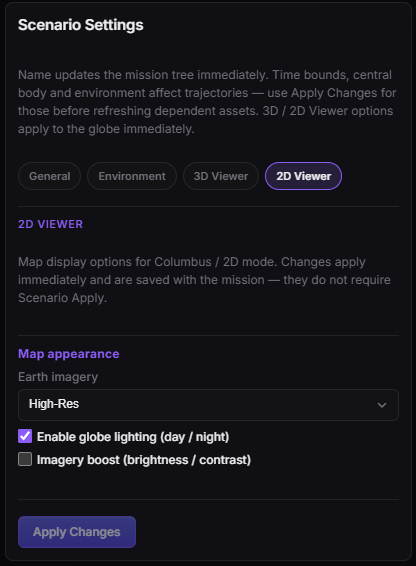
Scenario → 2D Viewer — map imagery, lighting, and boost. Shared with the 3D tab where noted.