Link
Pairwise contacts, optional RF budget
Link computes when two named assets can see each other over the scenario (or a custom window). Optionally, if the primary is a Transmitter and the secondary is a Receiver, it can close a first-order RF budget (margins vs required Eb/N₀), including polarisation and atmosphere from Scenario → Environment → RF.
Add from Mission Tree → Analysis → Link. Access Computation is the same panel as Coverage (Fast, Balanced, High Accuracy, Custom). Link always computes the contact geometry used by the sky plot and the range series.
When to use
| Use Link when… | Prefer something else when… |
|---|---|
| Contact intervals between two assets | Area statistics → Coverage |
| One space–ground RF hop | Multi-hop mesh → Connection network + Routing |
| Sanity-check after changing an orbit | Time from acquire to gateway → Latency |
Geometry only vs budget
Budget off — “when do we have contact?” Spacecraft, facilities, targets, vehicles, sensors. Several secondaries are allowed when the pair types match. The first shot is that case (primary Athens, secondary a facility).
Budget on — primary must be a Transmitter, exactly one secondary a Receiver. The Link Budget block appears only then. Configure Simple or Complex RF (and a linked antenna on Complex) before you trust margins. On Web, Simple and Complex are available on every plan, including Trial.
One named pair. A mesh of many pairs is a Connection Network.
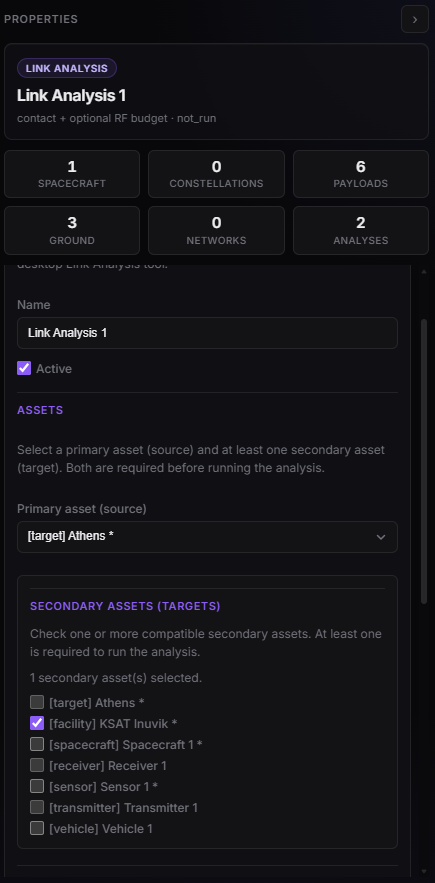
Link Properties — geometry (platform / target / facility).
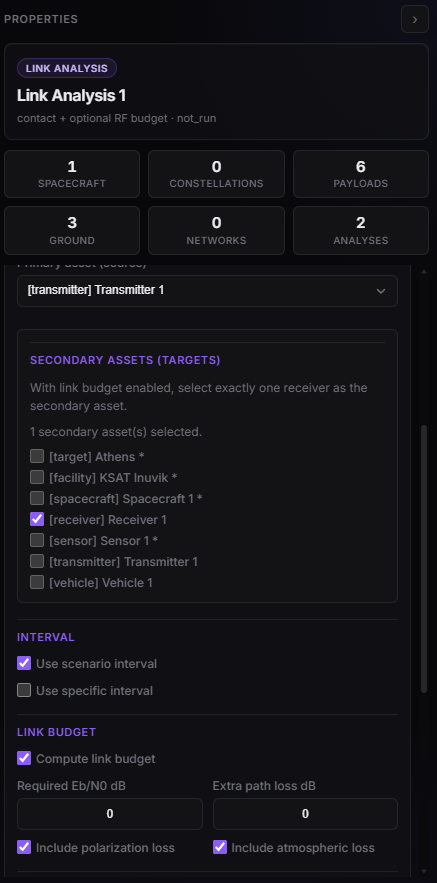
Link Properties — Transmitter + Receiver, Compute link budget on.
| Field (editor) | Meaning |
|---|---|
| Compute link budget | Closes the RF budget on that Tx→Rx hop. Disabled until the primary is a Transmitter (plan may hide it). |
| Required Eb/N₀ [dB] | Margin threshold. 0 uses the modulator preset (the receiver copies the transmitter while auto-track is on). Any value above 0 replaces that preset. |
| Extra path loss [dB] | A constant you add on the path (a margin that is not already in the transmitter or receiver). |
| Include polarization loss | Applies the Tx/Rx polarization mismatch (0, 3, or 30 dB). Off forces that term to 0. |
| Include atmospheric loss | Adds L_atm from Scenario → Environment → RF. Off forces it to 0. Plan-gated independently of budget. |
How the budget is calculated
Samples exist only inside a geometric contact. G_tx and G_rx are the antenna gains along the line of sight; Simple RF does not use an antenna.
Complex transmitter
EIRP = P_dBW + G_tx(θ, φ) + additional gain − additional loss
Simple transmitter: EIRP is the value on the asset.
Complex receiver
T_sys = 290 · 10^(NF/10)
G/T = G_rx(θ, φ) − 10 log10(T_sys)
Simple receiver: G/T is the value on the asset.
Path
L_fs = 20 log10(4 π R f / c) with c = 299792458 m/s and f the transmitter frequency.
L_path = L_fs + extra path loss + L_pol + RX additional loss + L_atm
L_pol is 0, 3, or 30 dB from the polarization pair. Transmitter additional loss is already inside EIRP, so it is not added here again.
Atmospheric loss
L_atm = L_gas + L_rain + L_cloud. It is 0 when Include atmospheric loss is off. When it is on, the climate comes from Scenario → Environment → RF propagation:
| Climatology source | What the budget reads |
|---|---|
| ITU maps — annual | Digital maps at the lower terminal’s latitude and longitude. |
| ITU maps — monthly | Same maps. Only surface temperature follows the sample’s calendar month, or the fixed month if you set one. Rain rate stays the annual map. |
| Custom | The numbers you type (rain rate, temperature, water vapour, cloud water, rain height, station altitude, pressure). |
The lower of the two ends is the ground point (a facility under a spacecraft). Elevation is the path elevation at that end, held at 1° so the slant path stays finite, and binned to 1° along the pass. Latitude and longitude are binned to 0.1°.
| Term | Formula used | Inputs |
|---|---|---|
| Rain | γ_R = k R^α, then L_rain = γ_R · (h_R − h_S) / sin θ |
k and α are ITU-R P.838-3. R is the rain rate exceeded 0.01% of the year (P.837), in mm/h. h_R is the rain height (P.839), h_S the station height (P.1511 topography, or the custom altitude). |
| Cloud | L_cloud = K_l · L / sin θ, with K_l = 0.819 f / (f² + 2) · (300/T)² (f in GHz) |
L is cloud liquid water (P.840, 50% of the year), kg/m². T is surface temperature (P.1510). |
| Gases | L_gas = γ · 6 / sin θ |
γ is a short oxygen-plus-water approximation, not the full ITU-R P.676 line catalogue. Water vapour is the P.836 50% map. On ITU maps the surface pressure is 1013.25 hPa. |
Rain polarization (H or V) only changes k and α. It is not the antenna RHCP / LHCP pair.
This is a climate slant path, not the weather at that UTC, and not the full ITU-R P.618 method. P.618’s effective-path reduction, scintillation, melting layer, and ionosphere are not in L_atm. Because R is the 0.01% rain rate, rain loss is the heavy-rain case applied on every sample of the pass, not a light drizzle. On a link between two spacecraft the lower vehicle is still treated as the ground end, so the path uses Earth topography under its ground track.
Carrier and margin
C/N₀ = EIRP + G/T − L_path − k with k = −228.6 dBW/K/Hz.
Eb/N₀ = C/N₀ − 10 log10(R_b) − L_impl
Margin = Eb/N₀ − Eb/N₀_required
C/N = C/N₀ − 10 log10(B), where B is the receiver noise bandwidth.
R_b is the transmitter data rate. L_impl and the default required Eb/N₀ come from the modulator. Doppler on the reported receive frequency is −f · (range rate) / c (positive range rate, receding, shifts the carrier down).
Raising EIRP, G/T, or lowering any loss raises C/N₀, Eb/N₀, and margin by the same number of decibels. Raising the data rate, the required Eb/N₀, or the implementation loss lowers the margin and does not change C/N₀.
With budget enabled, the secondary list is forced to one Receiver.
Who can pair with whom
| Primary | Allowed secondaries |
|---|---|
| Transmitter | Receivers only |
| Receiver | Transmitters only |
| Spacecraft, sensor, facility, target, vehicle | Other platforms in that family |
With budget enabled, the secondary list becomes a single Receiver (see the second figure above).
What to set
- Name, Active.
- Primary and compatible secondaries.
- Interval: scenario (usual) or custom UTC.
- Budget (optional, Tx + Rx): Compute link budget and the fields in the table above.
- Line colour / width for the 3D contact lines.
Facilities often need a ground elevation constraint. Sensors need FOV and pointing if they are a participant.
After Run
Design shows contact lines while the geometry is true. Dashboard: sky plot (azimuth / zenith of each pass), range, elevation; RF series only if budget was on.
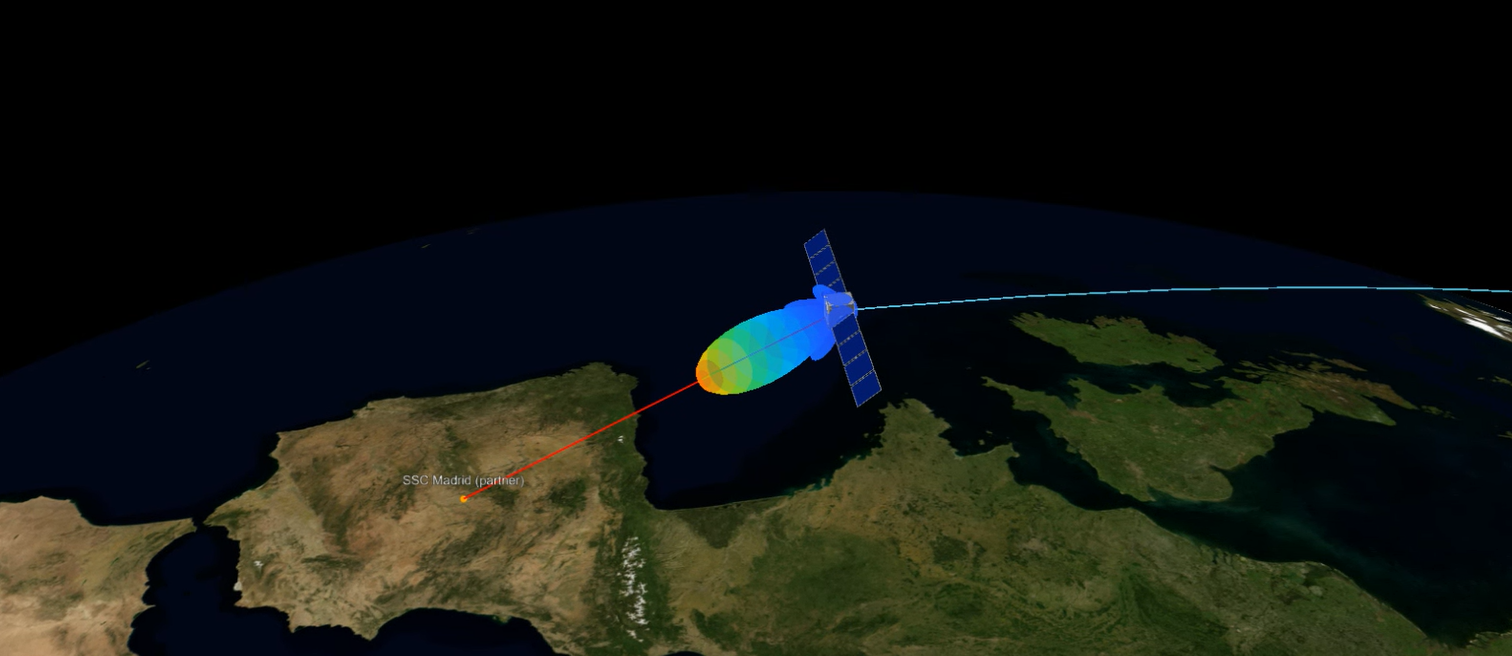
Design — geometric contact lines during a pass.
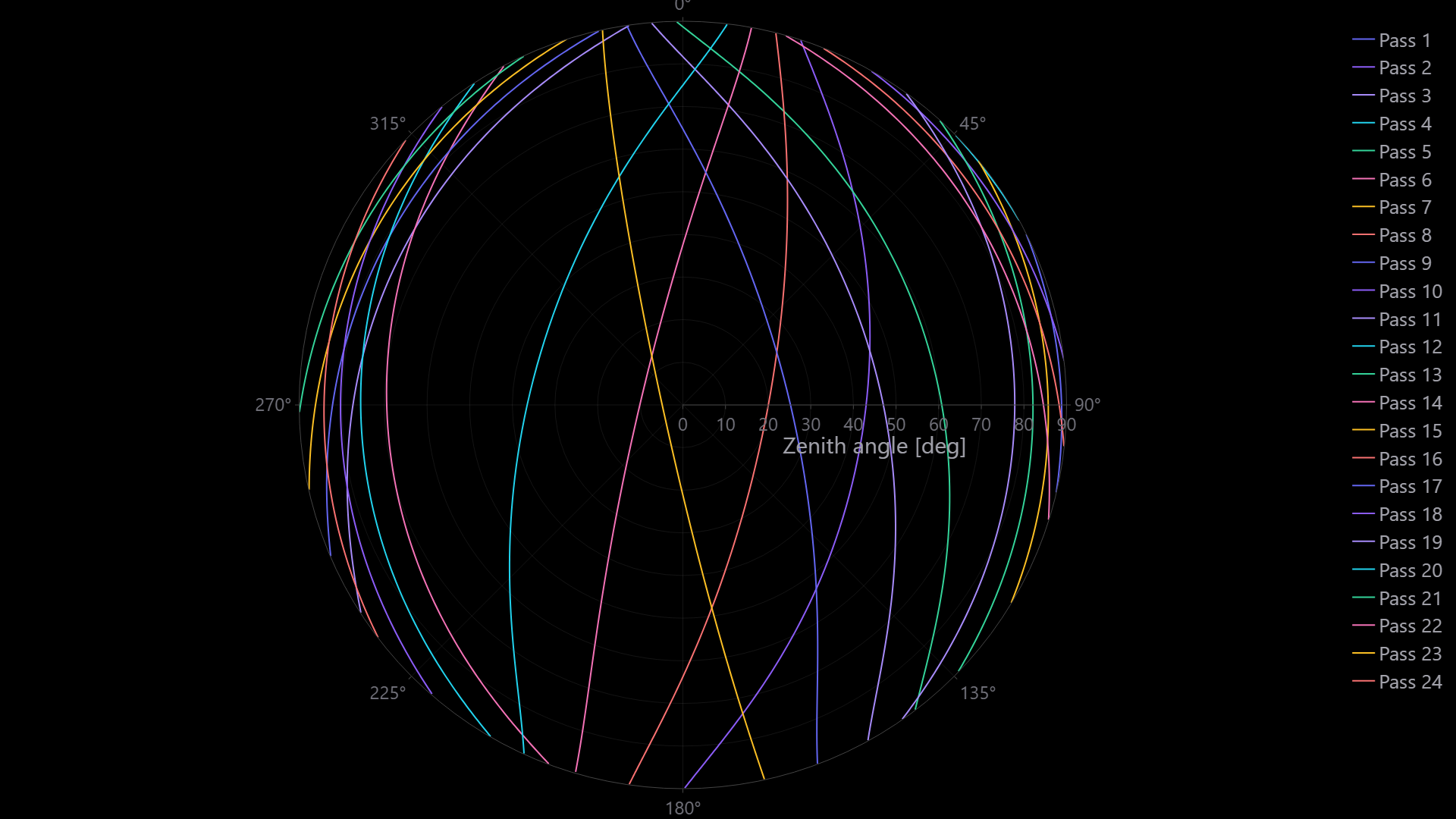
Dashboard — sky plot (azimuth and zenith angle per pass).
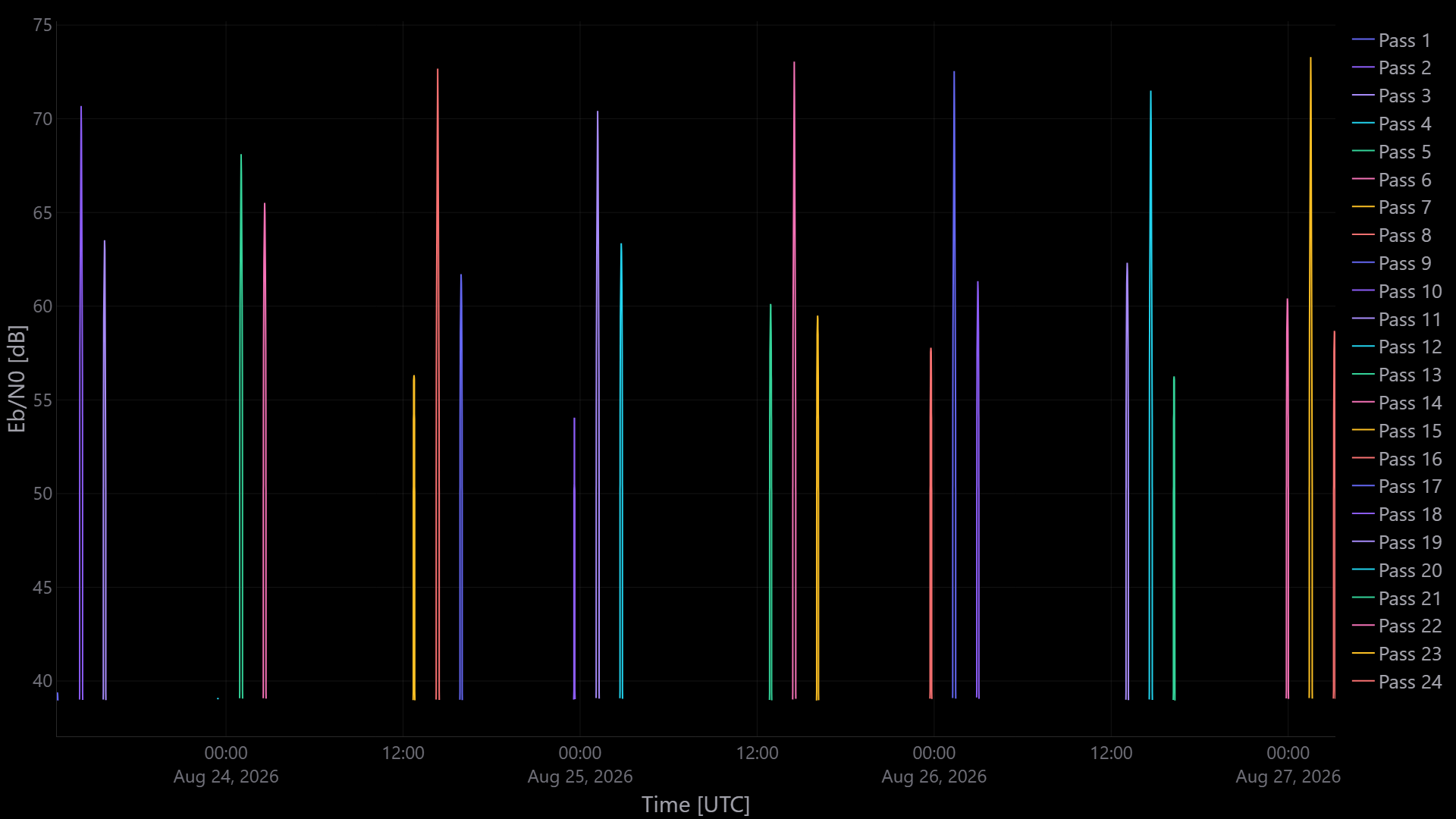
Dashboard — RF margin vs required Eb/N₀ when budget is on.
No contacts — horizon, elevation, eclipse, inactive assets, short interval.
Contacts but failed budget — EIRP or power, G/T or noise figure, antenna pointing, required Eb/N₀, atmosphere.