Properties
Edit the selected item, then apply
The Properties panel (right column) edits whatever is selected in the Mission Tree: the scenario, a spacecraft, a sensor, an analysis, and so on.
Change the fields, then scroll to the bottom and click Apply Changes. That writes the edit into the mission and updates the 3D / 2D scene. Until you apply, the tree may show a * on that item.
Open Web App · next: Scenario
What you see
- Header — type and name.
- Short summary — counts or highlights when they apply (for example constellation size).
- Tabs and fields — orbit, pointing, coverage parameters, and so on, depending on the asset.
- Apply Changes / Remove at the bottom.
Give assets clear names. They appear in the tree, in Dashboard, and in exported files.
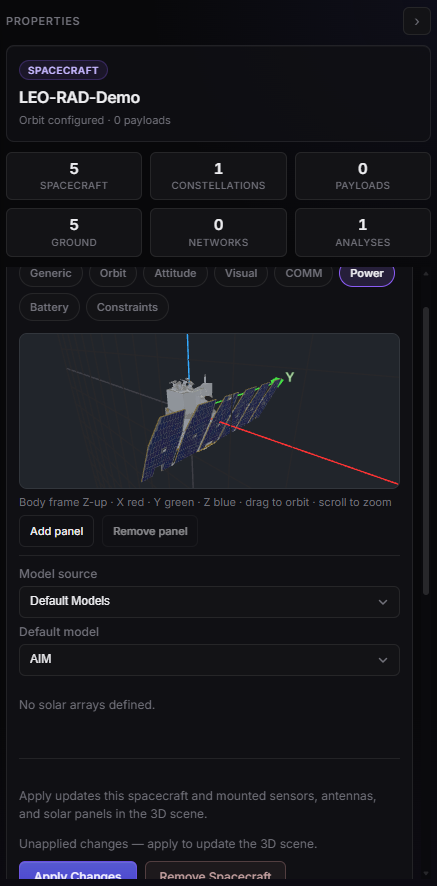
Properties — spacecraft name and orbit. Apply Changes is at the bottom of the panel.
Plan limits
Some values are limited by your plan (scenario length, time step, constellation size, coverage mode, …). If a field is not allowed, ASTROLAB explains why and how to stay inside the Trial or upgrade. Details: Account and access.
On phone or tablet, scroll the Assets pane to move through long forms — Mobile and tablet.