Interface tour
Find your way around the workspace
On a wide screen, ASTROLAB Web is a three-column engineering workspace: Mission Tree on the left, Design or Dashboard in the centre, Properties on the right. The top bar holds mission actions, view mode, Account, and theme.
Open Web App · next: Mission tree
Layout (wide screen)
From about 1100 px width:
| Region | What it is for |
|---|---|
| Top bar | Brand, Design / Dashboard, New / Open / Save / Export, Refresh All, Clear Scene, progress, Account, theme |
| Left | Mission Tree and Activity Log |
| Centre | Live 3D / 2D scene (Design) or plots and reports (Dashboard) |
| Right | Properties for the item selected in the tree |
The daily loop is: select in the tree → edit on the right → Apply Changes → inspect the centre.
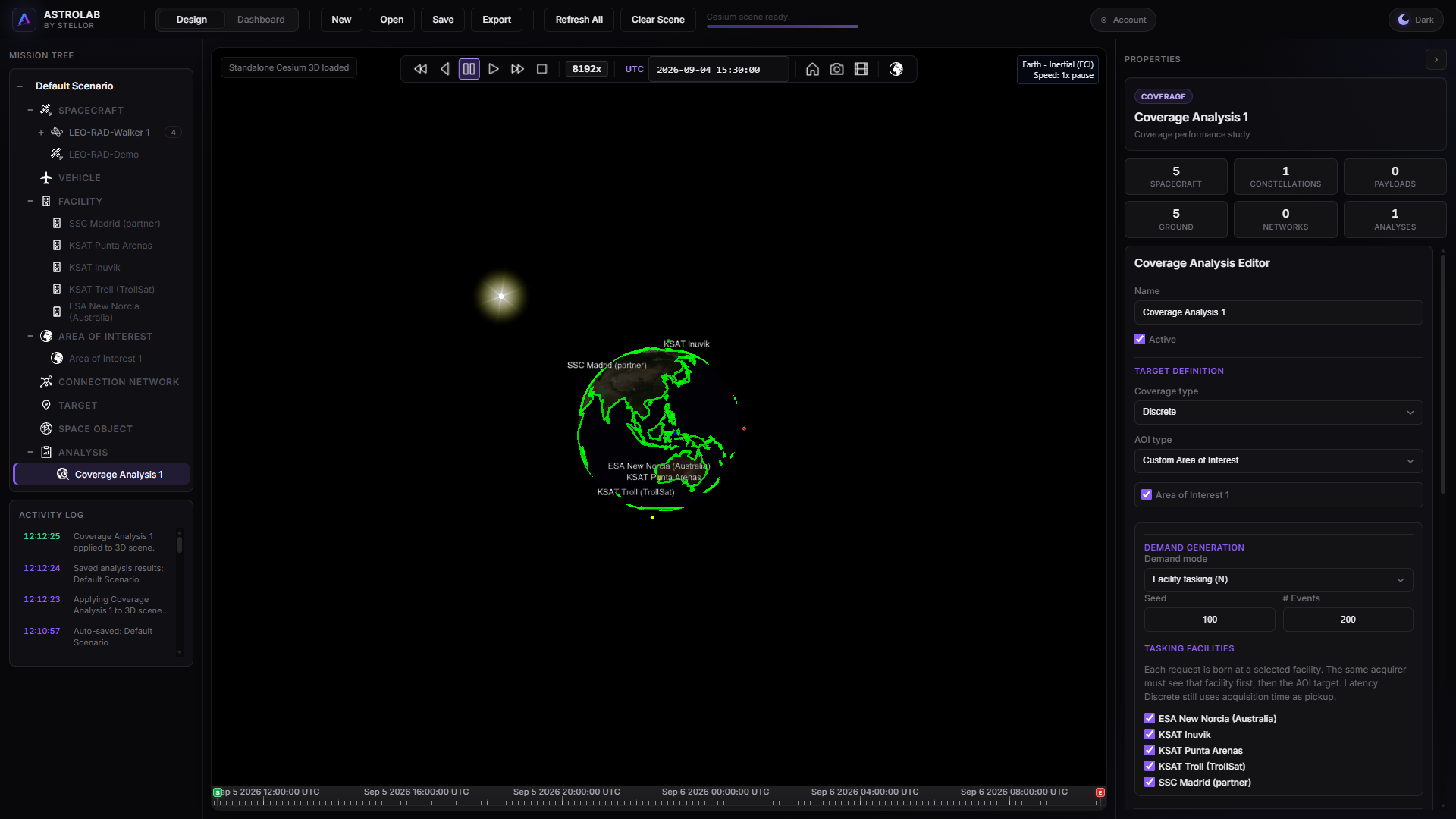
Design workspace — tree (left), scene (centre), Properties (right), top bar above.
Top bar
| Control | Action |
|---|---|
| Design / Dashboard | Switch the centre view. The mission stays the same. |
| New | Start a new mission (confirm if the current one is unsaved). |
| Open | Import a .astrolab file from disk. |
| Save | Save to your cloud library (counts toward plan quota). |
| Export | Download a .astrolab file. |
| Refresh All | Rebuild the whole 3D scene. Prefer Apply Changes on the asset you just edited. |
| Clear Scene | Remove graphics from the viewer; the mission document is unchanged. |
| Progress | Label and bar for long jobs (apply, scene, analysis). Cancel appears when a job can be stopped. |
| Account | Opens the Engineering Portal (missions, plan, preferences). Mission returns to the workspace. |
| Theme | Dark / Light. Dark is better for long 3D sessions. This documentation uses the same idea. |
Design and Dashboard
- Design — Cesium globe or map, playback, spacecraft markers, sensor swaths, analysis overlays when they exist.
- Dashboard — pick an asset, choose a plot or report template, Generate.
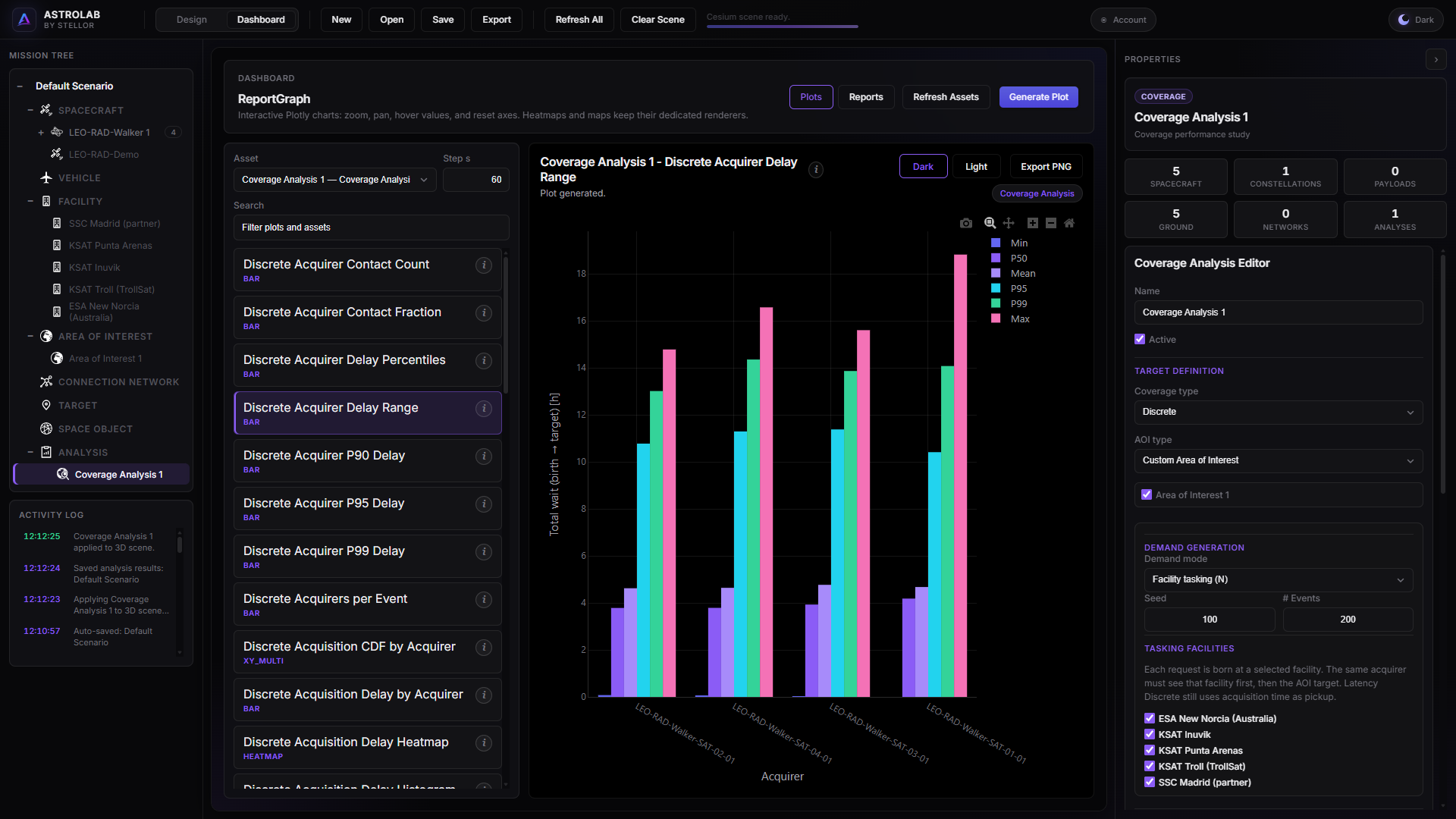
Dashboard — select the asset, pick a plot or report, generate.
Playback, 2D / 3D, and follow-spacecraft are described in 3D / 2D scene. Report templates: Reporting.
Activity Log
The log under the tree records apply, save, scene, and analysis messages. Use it when something did not appear in 3D: the last line usually says whether Apply finished.
Tablet and phone
Below 1100 px there is no three-column IDE. The menu switches between 3D scene, Dashboard, Assets, and Account. Details: Mobile and tablet.