Mission tree
Everything in the mission, in one list
The Mission Tree (left column) is the list of what exists in the mission: the Scenario at the root, then categories (Spacecraft, Facility, Area of Interest, Analysis, …) and the assets under them. Select a row to edit it in Properties.
Child items sit under a parent. A sensor, antenna, or solar array belongs to a spacecraft; you add them from that spacecraft, not from a global folder.
Open Web App · next: Properties
Select
- Click a row to load it in Properties.
- A * after a name means unapplied edits (Apply Changes), or — on an analysis — that the last run is stale (Run Analysis).
- On phone or tablet, selecting a row also opens Properties.
Add, remove, and run
On a wide screen, right-click a category or an asset. On touch, use the ⋯ button on the row. Same actions:
| You want to… | Do this |
|---|---|
| Add a spacecraft, facility, AOI, analysis, … | Right-click the category → Add … |
| Add a sensor, antenna, or other child | Right-click the parent (for example the spacecraft) → Add … |
| Build a constellation from a bus | Right-click the spacecraft → Create Constellation |
| Run a study | Right-click the analysis → Run Analysis (or use Run Analysis at the bottom of Properties) |
| Delete | Right-click the asset → Remove |
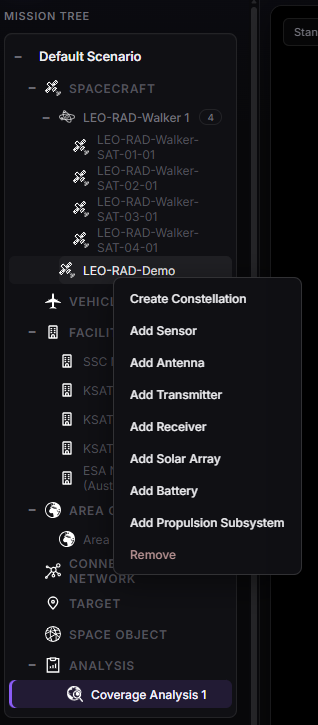
Mission Tree — add assets from the category or from a parent spacecraft.
Phone and tablet
There is no right-click. Use ⋯ on the row. See Mobile and tablet.
Use + / − on a node to expand or collapse children when the tree gets long.